Thursday, June 14, 2012

Exporting data from SQL Server to Excel

Excel is a very powerful tool and it can come in handy if you just want to build a quick report from your SQL Server database. In this post, we will discuss ways to export data and create a quick employee report.

1. Fire up your Excel and browse to data tab, click on From Other Sources and select From SQL Server.


2. Enter the SQL Server name. If your SQL Server's instance is other than default, you will also need to enter the instance name.


You will have to do this only once. After successfully connecting to your database, you can save the connection string and in the future just click on Existing Connections from the data tab to reuse the connection.

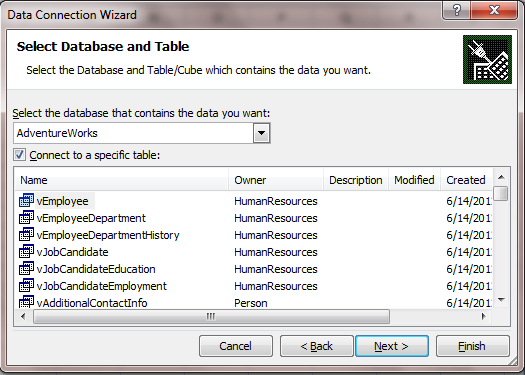
3. After entering the information, click on Next and select the database you want to export data from. In this example, we are going to use AdventureWorks. Select a table or a view to retrieve data from and click Next.
4. This is your chance to save your connection string for any future usage. Rename the connection string to a more appropriate name and click on Finish.

5. You are now ready to export data. You can either export table as it is saved in the database or create a pivot report or a pivot report with chart. In the example, I chose the second option.


6. Properties tab allows you to set certain parameters. Generally defaults work OK for most situations.


7. When you click on OK, Excel lists all the fields that are available in your selected table or view and you can select the ones you want to show up on report. As you select a column, you will notice that the value is added in the spreadsheet. The order you want the data to appear in the report is the order you should select the columns. For example, if you want Last Name to appear before First, select Last Name first and then select First Name column.

8. Close the Fields List and here is your nice little report.

Thank you.

Monday, June 11, 2012

Compressing your data


If deleting data is not an option, SQL Server 2008 and 2012 provide another option to compress individual tables by compressing rows or pages.

Before you compress a particular table, it may be prudent to know which table will provide you the biggest gain. In my previous post I talked about running a script to determine the tables with largest amount of data which can be used to determine which tables to tackle first.

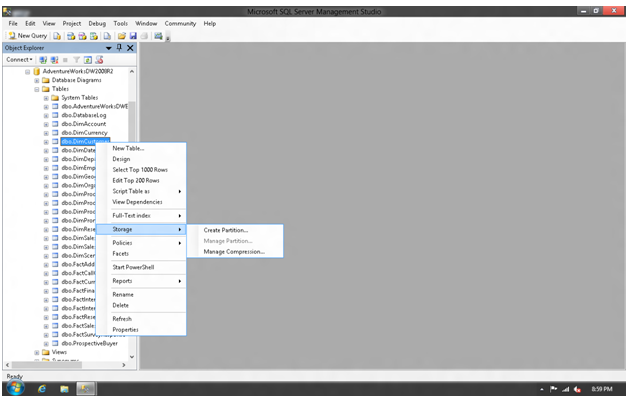
Let's assume you have determined the table(s) to compress, fire up your management studio and then right click on the table > Storage > Manage Compression


Click on Compression and select Compression Type - Row Level Data Compression or Page Level Data Compression.

After you select compression type, you can click on Calculate which will show you how much you will gain.
  • Row Level Data Compression: This compression turns the fixed length data types into variable length data types and frees up empty space. As you can image, a table with more columns of char/nchar data type will yield more space. Row level compression can also ignore zero and null values resulting in additional space savings. 
  • Page Level Data Compression: When you choose this compression type, it starts with row level data compression and then adds additional compression by performing two extra layer of compression...
    • Prefix Compression
      • SQL Server analyzes the repeated pattern at the beginning of the values in each column and substitutes them with an abbreviated reference which is stored in the compression information structure. This type of compression only works on one column.
    • Dictionary Compression
      • It works similarly to prefix compression except that it searches for repeated patterns anywhere in a page and replaces them with an abbreviated reference and stores the reference information in the compression information structure.

How much savings you will gain by the page level compression depends on the patterns of the data. Repeatable patterns will result in more savings, whereas random patterns will result in less savings.

As you can imagine, this will result in performance degradation, but how much and whether it is acceptable will depend on your environment.

Thank you.


Thursday, June 7, 2012

Determining SQL Table Size

You may come across a situation where you need to shrink your database by selectively deleting data from some tables.

It sure would be nice to know which tables are the biggest data hog and see if you can delete records to free up some space and then shrink the database. There is indeed a nice little script that you can use to determine the table size and act accordingly.

CREATE TABLE #tmpTable
(name SYSNAME, 
rows CHAR(11), 
reserved VARCHAR(18),  
data VARCHAR(18), 
index_size VARCHAR(18), 
unused VARCHAR(18)
)  
EXEC sp_msforeachtable 'INSERT INTO #tmpTable EXEC sp_spaceused ''?''' 
SELECT * FROM #tmpTable ORDER BY data desc 
DROP TABLE #tmpTable 

If you are running SQL 2008 (or SQL 2012 enterprise edition, then you can also compress individual tables. We will discuss table compression in next post.

Thank you

Tuesday, June 5, 2012

Checking Foreign Key References

You may come across a situation where you need to check which tables are connected to a particular via a foreign key referential constraint. You may need this information when you are trying to delete one or more records or truncate a table.

Below is a script that you can use to check all the tables that are related to the table in question. In this example I am checking for the table "Employees"

SELECT f.name AS ForeignKey,
OBJECT_NAME(f.parent_object_id) AS TableName,
COL_NAME(fc.parent_object_id,
fc.parent_column_id) AS ColumnName,
OBJECT_NAME (f.referenced_object_id) AS RefTableName,
COL_NAME(fc.referenced_object_id,
fc.referenced_column_id) AS RefColumnName
FROM sys.foreign_keys AS f
INNER JOIN sys.foreign_key_columns AS fc
ON f.OBJECT_ID = fc.constraint_object_id

WHERE OBJECT_NAME (f.referenced_object_id)='Employees'

Below is a result showing the three tables it is connected with.

ForeignKey TableName ColumnName RefTableName RefColumnName
FK_Emp_Addresses EmpAddresses EmployeeID Employees EmployeeID
FK_Emp_Phones EmpPhones EmployeeID Employees EmployeeID
FK_Emp_Attributes EmpAttributes EmployeeID Employees EmployeeID

Thank you.

Monday, June 4, 2012

Change Database Compatibility Level

Recently I came across a database environment that had SQL Server 2005 (don't ask me why), but the databases (there were about 50 databases) were running at SQL Server 2000 compatibility level. After ensuring that nothing will break if I changed a database's compatibility level to 2005, I decided to go ahead and run a script to change all databases' compatibility level to 2005.

Below is a script that you can run in your environment.
DECLARE  @tmpTable TABLE (Name varchar(50),compLevel INT,StateDesc varchar(50))

INSERT INTO @tmpTable(Name,CompLevel,StateDesc)
SELECT Name,Compatibility_level,State_Desc FROM sys.databases 

DECLARE @DBName varchar(50)
DECLARE curDBName CURSOR FOR
    SELECT Name FROM @tmpTable WHERE StateDesc='ONLINE'
OPEN curDBName
FETCH NEXT FROM curDBName INTO @DBName
WHILE @@FETCH_STATUS=0
    BEGIN
        DECLARE @compLevel INT
        SELECT @compLevel=compLevel FROM @tmpTable WHERE Name=@DBName
        If @compLevel=80
            BEGIN
            Exec sp_dbcmptlevel @DBName,90
            END
        FETCH NEXT FROM curDBName INTO @DBName
    END
CLOSE curDBName
DEALLOCATE curDBName

You can change the version to move from 2000 to 2008 or 2005 to 2008, but before you do that, make sure that your database will not break. One way to check would be to create database scripts by logging into Management Studio > Right Click on Database > Tasks > Generate Scripts. Make sure you select all objects i.e. tables, views, stored procedures, functions etc. and then save scripts. Run these scripts to create an empty database in the SQL environment you are upgrading your database to. If there are no errors, there is a good chance that your production database will work fine.

Thank you.


Saturday, June 2, 2012

Creating a Composite Foreign Key

In previous post we discussed various types of primary keys such as natural key, surrogate key and composite key. To recap, a composite primary key is a combination of more than one columns. Ordinarily a single column primary key is preferable but there are situation as we discussed previously when it makes sense to create a composite primary key.

Naturally, if you want to use composite primary key as a foreign key in other tables, you will have to create the columns in the secondary table that corresponds to the primary table. For example, you have a table called Customers and you have a composite primary key "FirstName, LastName" in this table. To use this key as a foreign key in another table say "CustomerAddresses" you will have to create the FirstName and LastName columns in CustomerAddresses table and then add the referential integrity. (I am not saying this is a good way to design your table schema, this is just an example).

Below is the script that you can run to create a foreign key in CustomerAddresses table.
ALTER TABLE dbo.CustomerAddresses
   ADD CONSTRAINT FK_Customer
   FOREIGN KEY(FirstName, LastName)
   REFERENCES dbo.Customers(FirstName, LastName)


You can use the same script to create foreign key constraint on any other columns. For example, if your Customers table has "CustomerID" as primary key, then you would add "CustomerID" column in CustomerAddresses table and then use the script above replacing "FirstName, LastName" with "CustomerID".

Thank you.